Thunderbolt Networking Is Underused
I've been trying to keep up with local AI hosting, and I've noticed a bunch of Mac Studio cluster demos that have been going around, where people daisy chain Mac Studios together with Thunderbolt 5 cables for AI work, pooling the unified memory. While watching, I couldn't help but be reminded of the 2 thunderbolt 4 ports on my laptops, so I decided to try my own version. Surprisingly, It's been so good I've been using it every day for the last two weeks.
Why I tried it
1. Two laptops, different strengths
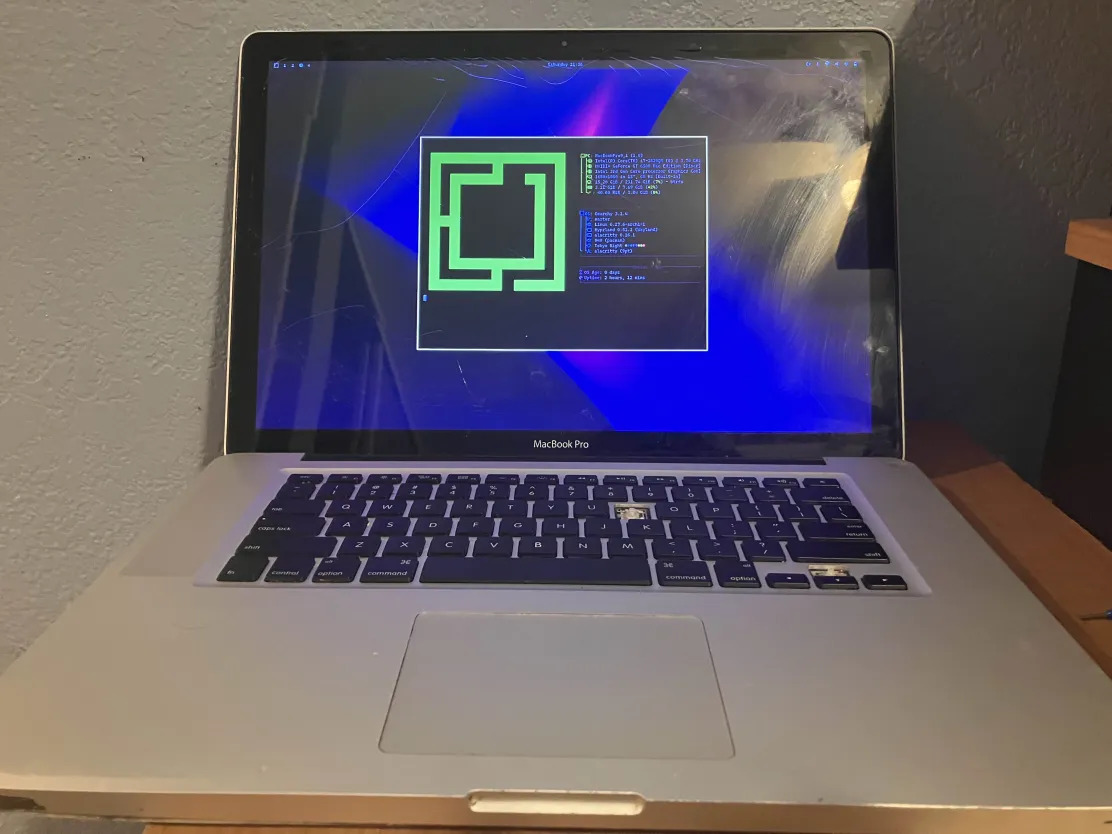
My MacBook Air is my daily driver because it's light, fanless, and has a ridiculously great battery. But it's got 16 gigs of RAM and no dedicated GPU. My other laptop is an i9-13900HX with an RTX 4070 and 64 gigs of DDR5, but it's heavy, the fans are loud, and the battery lasts about an hour if I'm generous. I've been using them together for a while now, just with ssh, which is great but leaves a lot to be desired, especially when being physically close to the laptop.
2. Nobody seems to use it this way
Thunderbolt networking has been around since 2013 when Apple added Thunderbolt Bridge to macOS. But every time I see it discussed it's either NAS setups for video editors or enterprise clustering. I've never seen anyone talk about just connecting two personal laptops and using it as a daily thing.
3. It costs $20
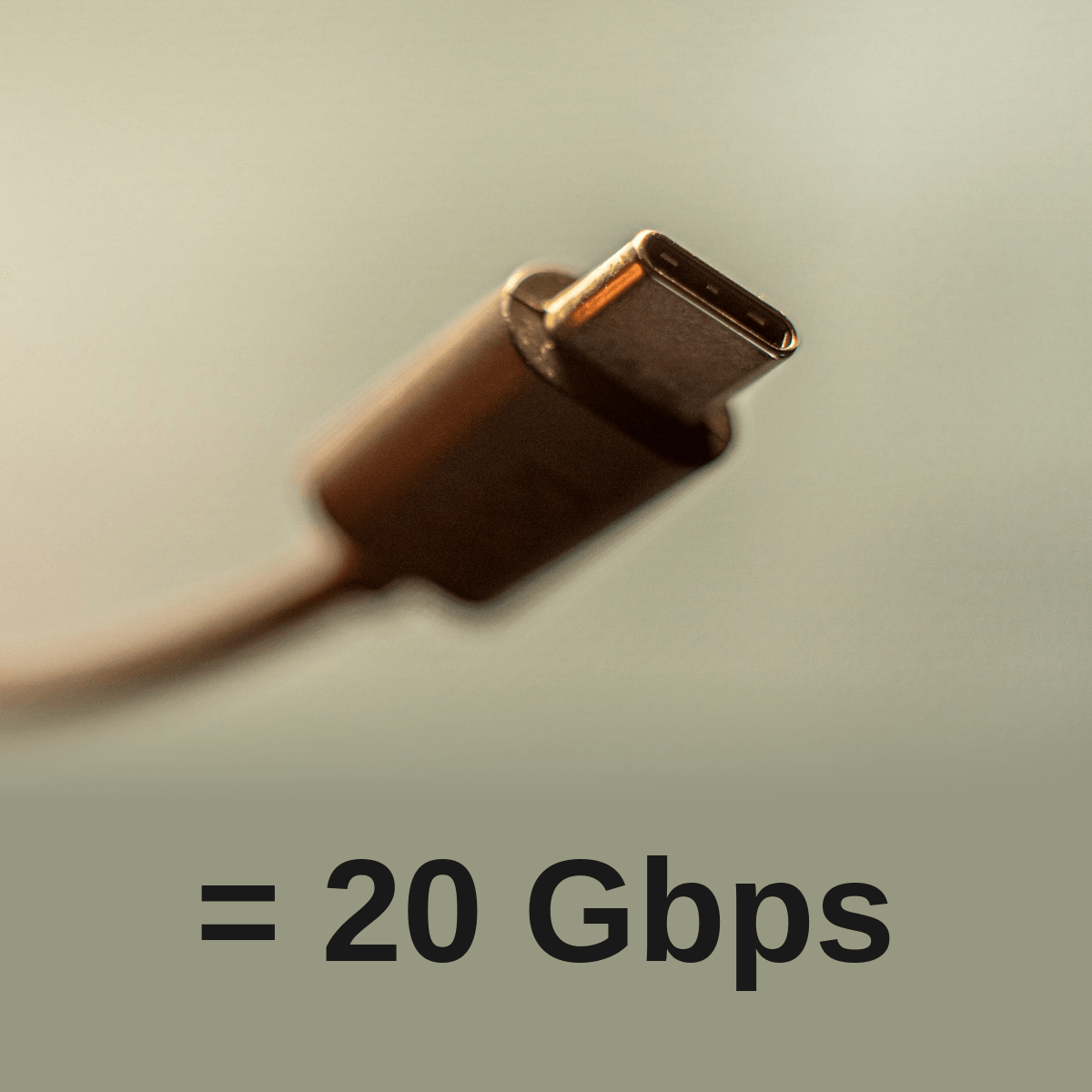
I grabbed a cable from Microcenter for 20 bucks. I'm sure you could get a shorter one for cheaper, but I wanted at least a meter.
The setup
MacBook Air M5 (2026) - Apple M5, 10-core CPU/GPU, 16GB RAM, Thunderbolt 4
Gaming Laptop (Linux) - i9-13900HX, RTX 4070 Max-Q, 64GB DDR5, Thunderbolt 4 (Maple Ridge)
On the Mac you just plug in the cable and Thunderbolt Bridge shows up in System Settings Network. I set a static IP of 10.0.0.1/24.
On Linux, the kernel creates a thunderbolt0 interface automatically:
bash
sudo ip addr add 10.0.0.2/24 dev thunderbolt0
sudo ip link set thunderbolt0 up
Made it persistent with systemd-networkd, and after bracing for a multi-hour debugging session like the Nvidia driver thing from my Omarchy post, I was pleasantly surprised that it (mostly) just worked.
Speed tests
I was even more surprised after running tests, because I love networking, and I never though I would have such high speed connections so easily.
iperf3
Raw TCP throughput, single stream, 10 seconds:
Linux to Mac: 15.9 Gbps
Mac to Linux: 18.8 Gbps
15.9 and 18.8 Gigabits per second, with no retransmissions on the upload side.
The Mac pushes data faster than it pulls., which I would assume that it's something about how Apple's bridge driver handles buffering. My WiFi tops out around 150 Mbps on a good day, so this is about 100x faster.
I also tried 4 parallel streams and got the exact same 15.9 Gbps, which means a single stream already maxes the link out. The bottleneck is the Thunderbolt controller, not TCP.
What personally made me happy to see was the consistency. Obviously a wired connection is more consistent than wireless, but that graph is a flat line for the full 10 seconds.
Bidirectional
Traffic both ways at once:
[TX] 0.00-5.00 sec 1024 MBytes 1.72 Gbits/sec sender
[RX] 0.00-5.00 sec 10.9 GBytes 18.7 Gbits/sec sender
About 20.4 Gbps total. The download side got priority, which makes sense because Thunderbolt 4's 40 Gbps is shared bandwidth, not 40 per direction.
Jumbo frames
Quick note because I went down a rabbit hole on this. The Mac's Thunderbolt Bridge defaults to MTU 9000 (jumbo frames), while Linux was at 1500. Bumped Linux to 9000 to match and it made basically no difference. 15.8 vs 15.9 Gbps. It seems that the thunderbolt controller is the bottleneck rather than packet overhead. But I could be wrong, if you could get better results by using jumbo frames, reach out to me because I would be interested in how you did it.
Latency
This is probably the most useful result for actual daily use.
Thunderbolt:
rtt min/avg/max/mdev = 0.142/0.299/0.435/0.065 ms
Tailscale (WiFi path):
rtt min/avg/max/mdev = 24.294/39.601/68.759/12.074 ms
Obviously this is ridiculously good. It's good to the point where I've setup cloud gaming servers like Sunshine and Moonlight and there is absolutely no noticeable latency.
File transfers
SCP a 1GB file:
- Linux to Mac: 2.23 seconds (460 MB/s)
- Mac to Linux: 2.24 seconds (460 MB/s)
Almost perfectly symmetrical. The 460 MB/s is bottlenecked by SSH encryption (AES-256-GCM), not the link. NFS or something unencrypted would get closer to the 2 GB/s that the iperf3 test has.
rsync 1,000 small files (10KB each):
real 0m0.324s
A thousand files in a third of a second, not too shabby.
SSH latency
SSH command round-trip (including key exchange):
- Thunderbolt: 147ms
- Tailscale: 445ms
The handshake dominates both numbers so the gap looks smaller than the raw ping test. But tools like VS Code Remote and SSHFS that do tons of small round-trips benefit a lot from it.
How I've been using it
I added an alias to my SSH config pointing at 10.0.0.2 from my mac, and 10.0.0.1 from my gaming laptop. I also have a script on the mac that auto switches the alias from tailscale to the static ip when I disconnect the cable.
The thing I like most is treating the MacBook as a thin client. On the go it's a normal laptop for school work, but when I sit at my desk and plug in the cable, I've got access to all 64 gigs of RAM, the RTX 4070, 24 CPU cores, Docker, all my dev environments.
I've also been mounting my Linux project directories on the Mac via SSHFS when I want to use macOS tools on files that live on Linux. The latency is low enough that IDEs don't complain about it.
GPU offloading has been fun too. My MacBook doesn't have an NVIDIA GPU, but the Linux machine does, so I SSH in and run ollama or llama.cpp and interact with local LLMs from a terminal on the Mac. Same for ML training. The link is fast enough that I never notice.
Limitations
1. You need a cable. Both laptops have to be physically next to each other. When I leave my desk I lose the connection. Fine for me since the Linux machine is basically a stationary workstation, but worth noting.
2. SCP is limited to 460 MB/s by SSH encryption. The raw link does 2 GB/s but you're not seeing that with encrypted protocols. Haven't set up NFS yet.
3. Not all USB-C cables are Thunderbolt cables. Make sure you get an actual Thunderbolt 4 cable. They're $12-20 now, but don't just grab a random USB-C cable from a drawer, which is what I initially tried.
What's next
I want to try NFS instead of SSHFS to get closer to the raw 2 GB/s, and want to figure out how much the link actually constrains GPU offload workflows.
Thunderbolt networking has been around for over a decade and every Thunderbolt port on every laptop from the last five years supports it. I'm not sure why more people don't use it. Maybe it's just because nobody talks about it outside of server use. Apple calls it "Thunderbolt Bridge", and Intel tried to turn it into a premium product with Thunderbolt Share, but at the end of the day it's just IP networking over a cable, and it's really fast.
Thanks for reading - feel free to reach out if you have questions or if you've done something similar.